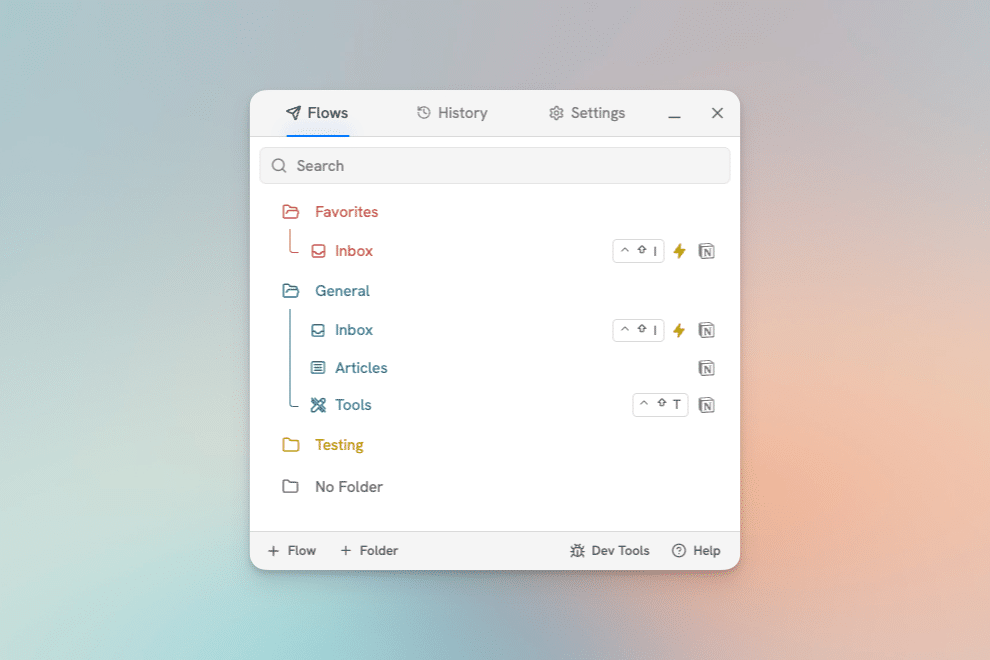
Flows are organized into folders. Flows without a folder will be put in an auto-generated folder titled No Folder. This folder cannot be recolored or moved.
Creating Flows & Folders
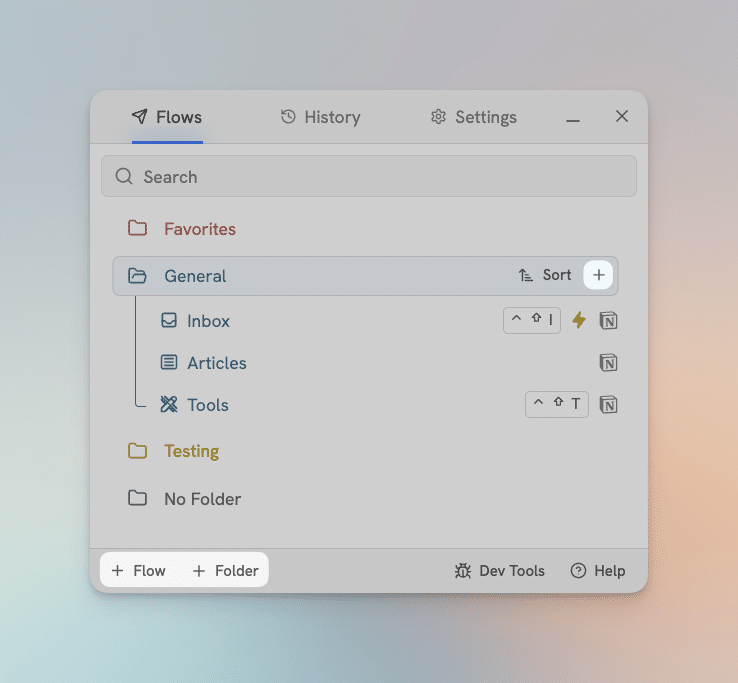
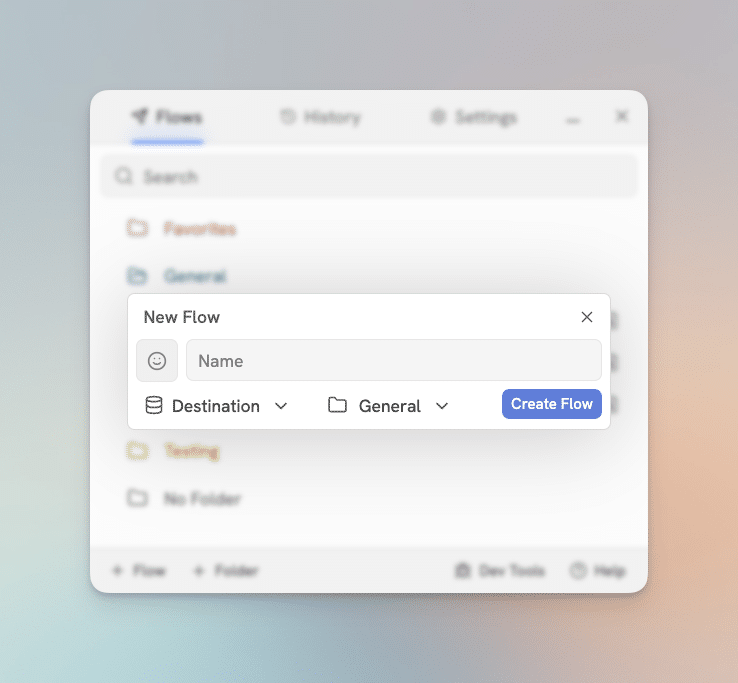
To create a new Flow or folder there are two buttons in the bottom left. Alternatively, you can automatically set the new Flows folder by using the + button on the folder which is revealed when hovering it. Inside the Flow creation modal you can set the icon, name, capture mode, and folder.
Folder colors & Flow icons
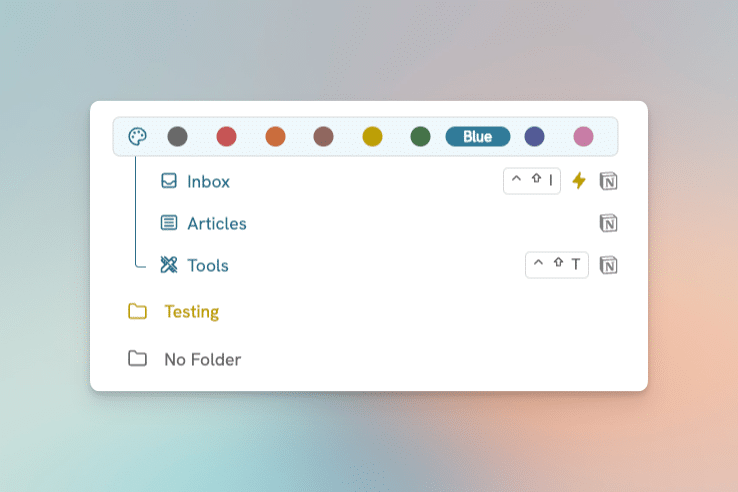
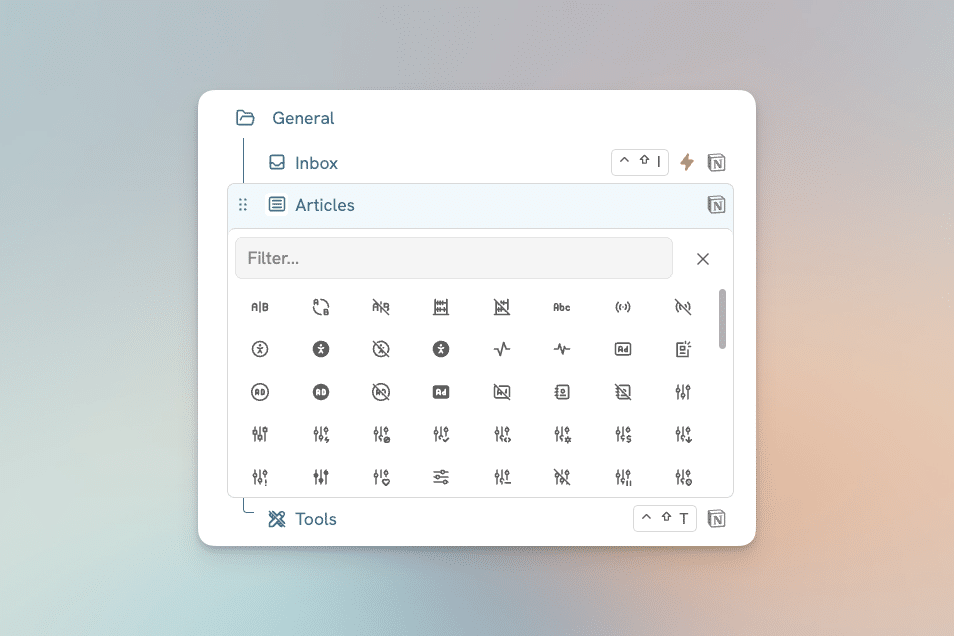
Folders can be given a color by clicking the folder icon. You can change a Flows icon by clicking on it.
Sorting & Arranging
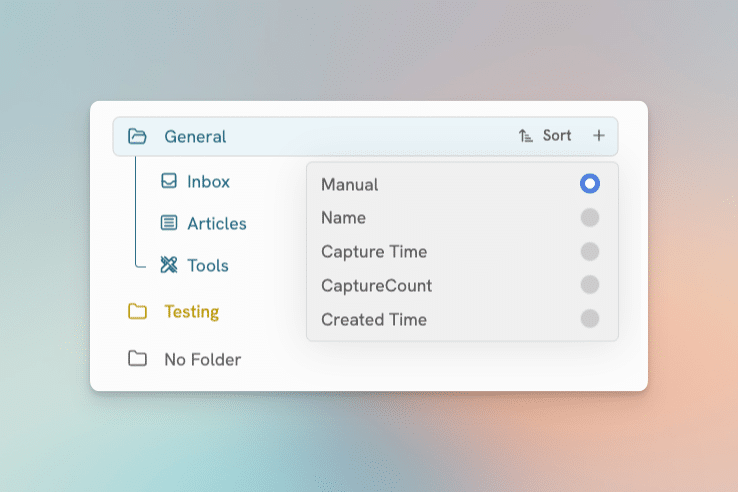
Individual folders can be sorted in four ways: Alphabetical, Date Created, Last Used, Capture Count, and Manual.
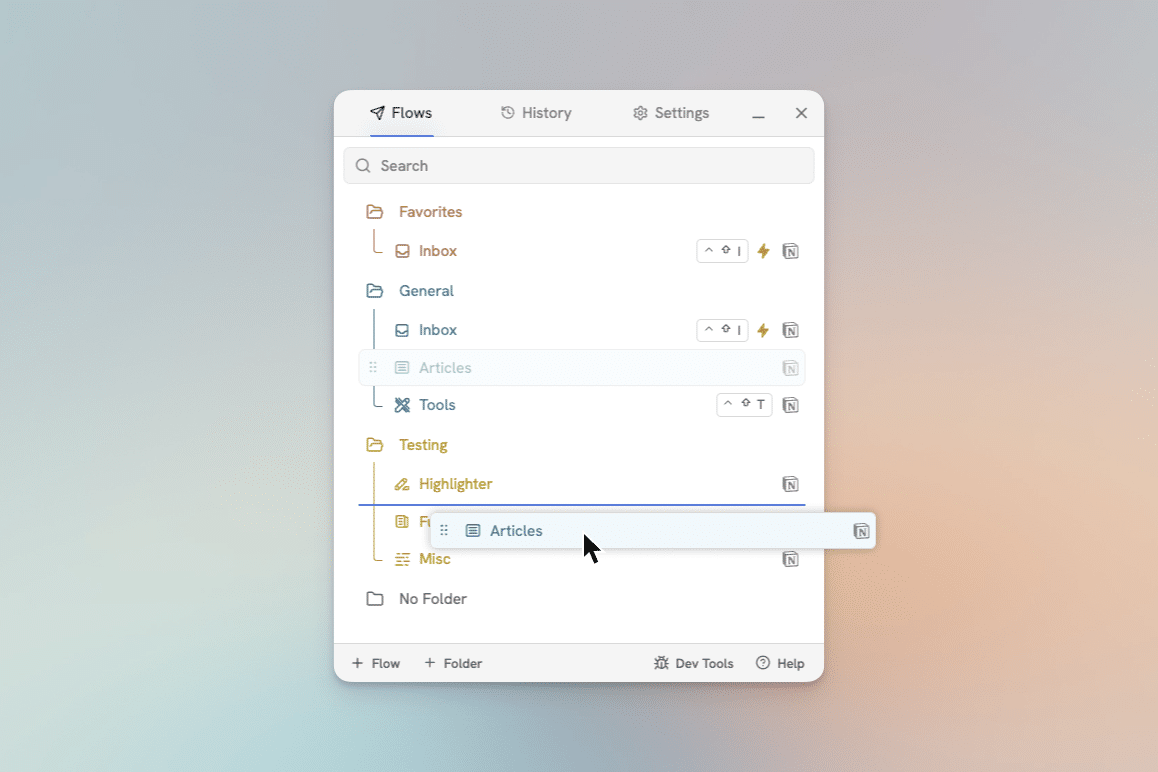
Folders and Flows can be reordered or moved between folders by dragging and dropping. Drag and drop will automatically set a Folders sort to Manual.
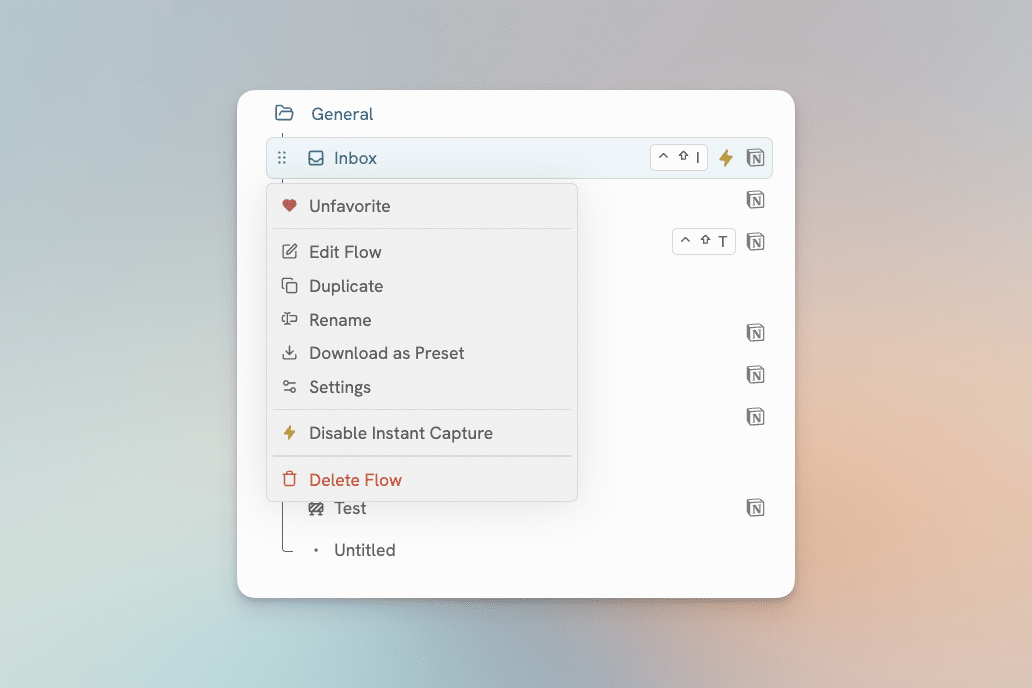
More options for Flows and folders can be accessed by right clicking them, or by clicking the 3-dot handle next to them. Here you can do things like add to favorites, rename, and delete them.