
AI features are very experimental at the moment! While in beta, all of our AI features are available on the free plan. In the future, we may require a Pro subscription
for some AI features to support development. We’d love to hear your feedback in our Discord community.
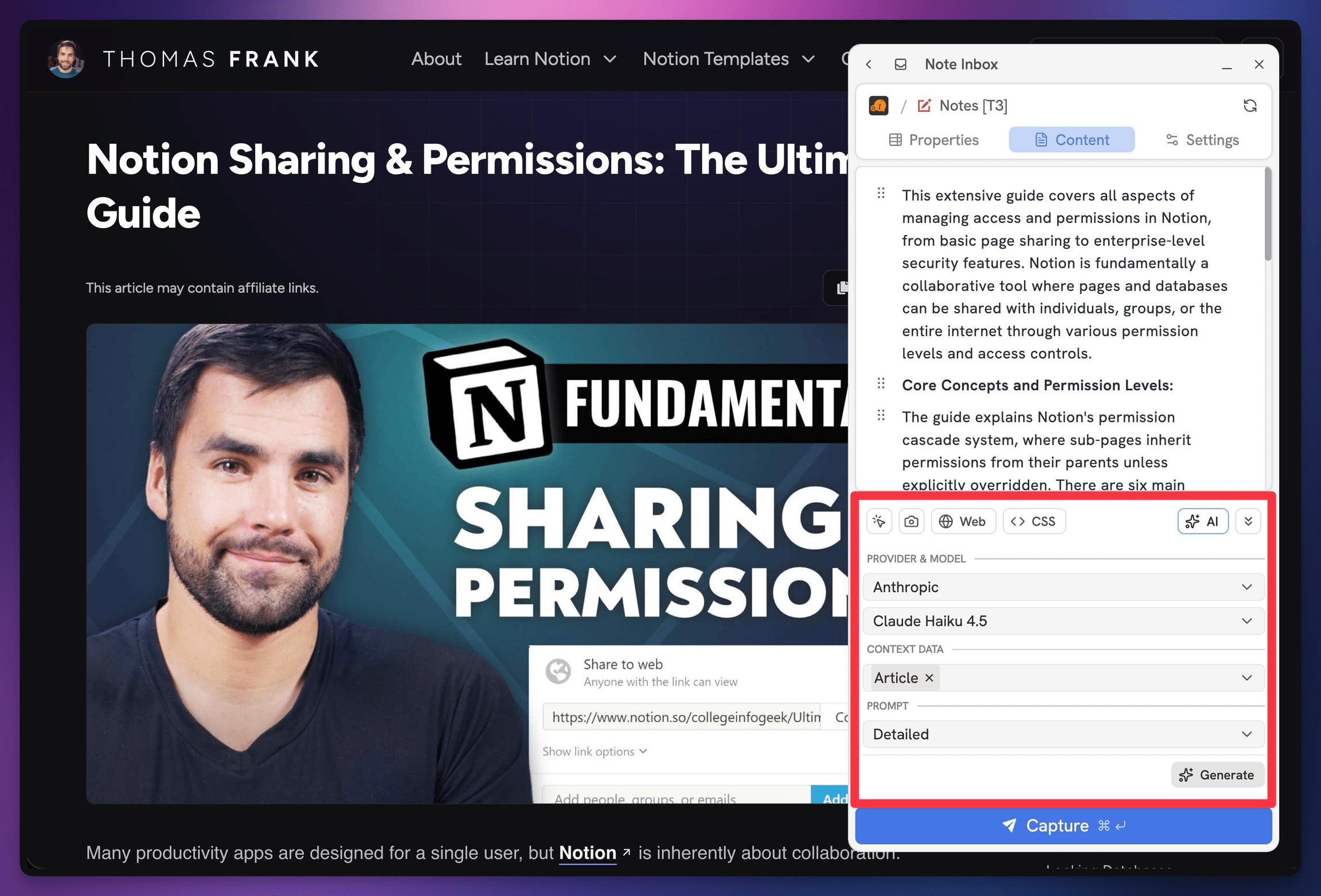
Flylighter’s AI features allow you to generate and capture summaries, list of key points, and even custom prompt results from any page you visit.
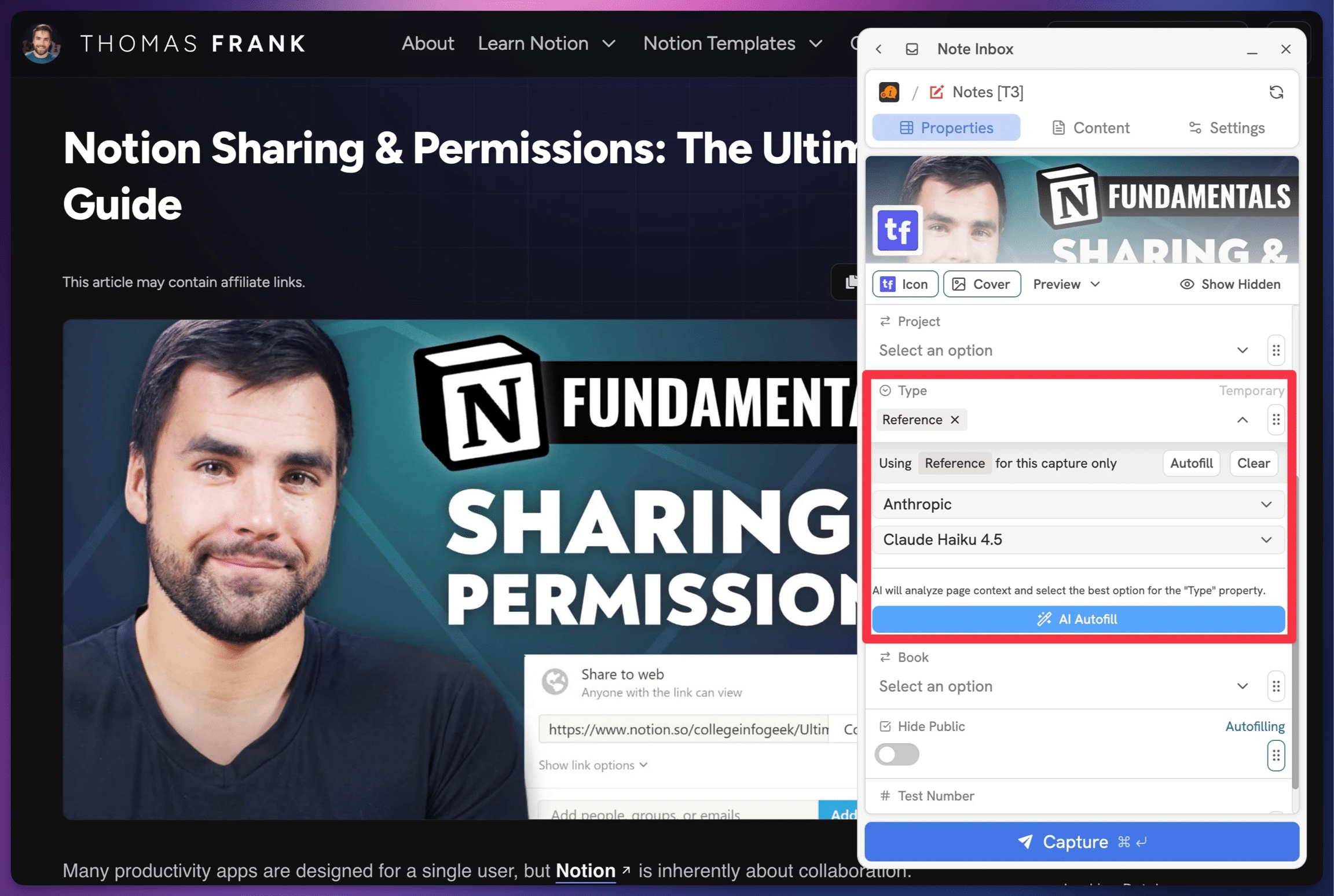
Additionally, you can use Flylighter’s AI plugin within a Flow’s Properties tab to intelligently select the best data for Notion database properties.
Enabling AI Features
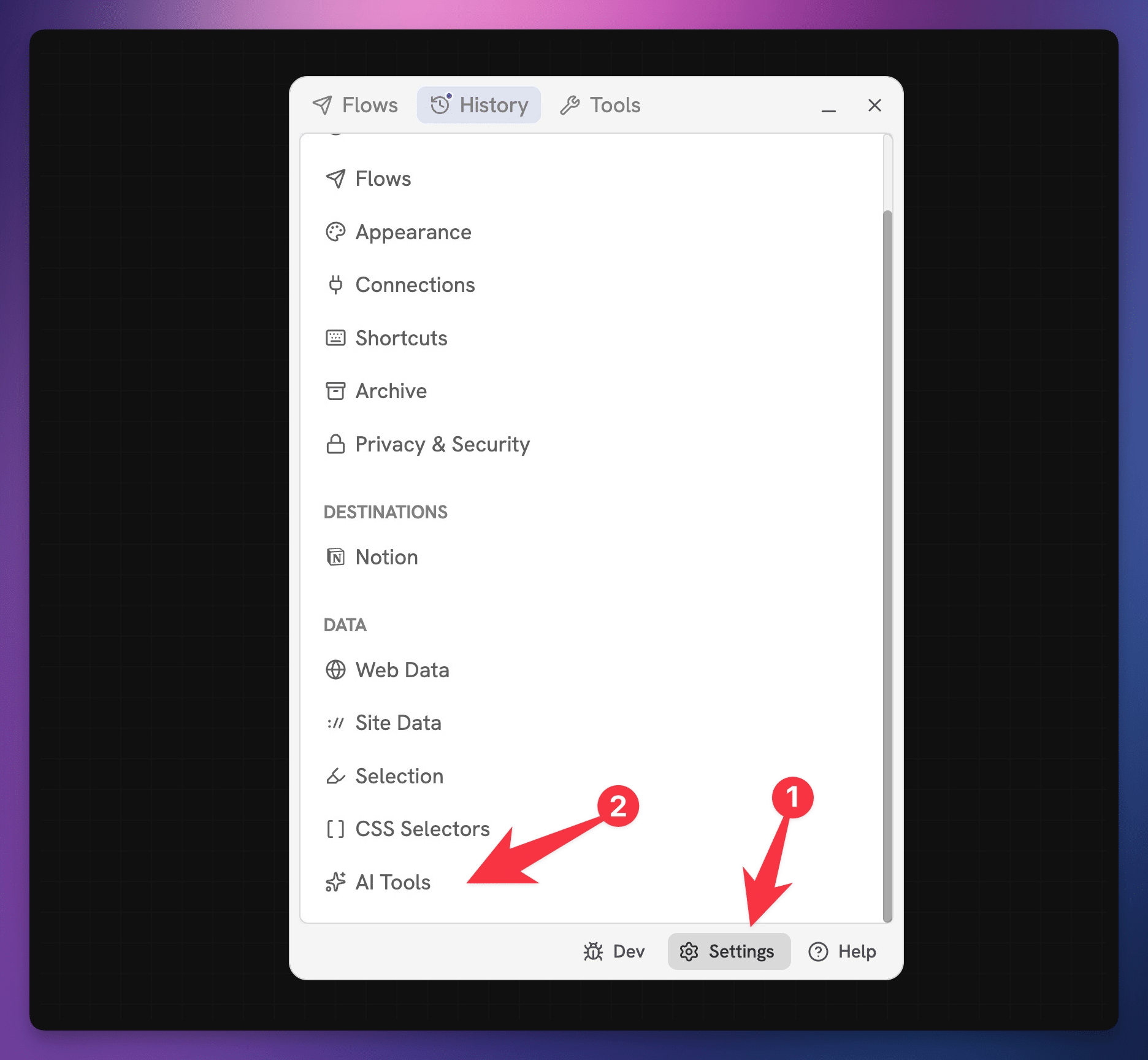
You can start using AI features in Flylighter by heading to Settings → AI Tools.
We’ve chosen a Bring-Your-Own-Key (BYOK) approach to AI features in Flylighter. This means that instead of charging for AI credits, we simply let you use your own API key from one of our supported model providers.
This has several benefits:
- There are currently providers that offer access to free models, so it’s possible to pay $0 for the tokens you use.
- Even if you choose to use paid models, you’ll only pay the public API rates.
- Requests go directly from your browser to your chosen provider. Your prompt outputs never touch our servers (if you choose to save prompts as presets and have a paid Flylighter, we’ll securely sync those – but we don’t process or store model outputs.)
- You can local models through LM Studio or Ollama
To get started, obtain an API key from one of our supported providers, then save it that provider’s section within Settings → AI Tools.
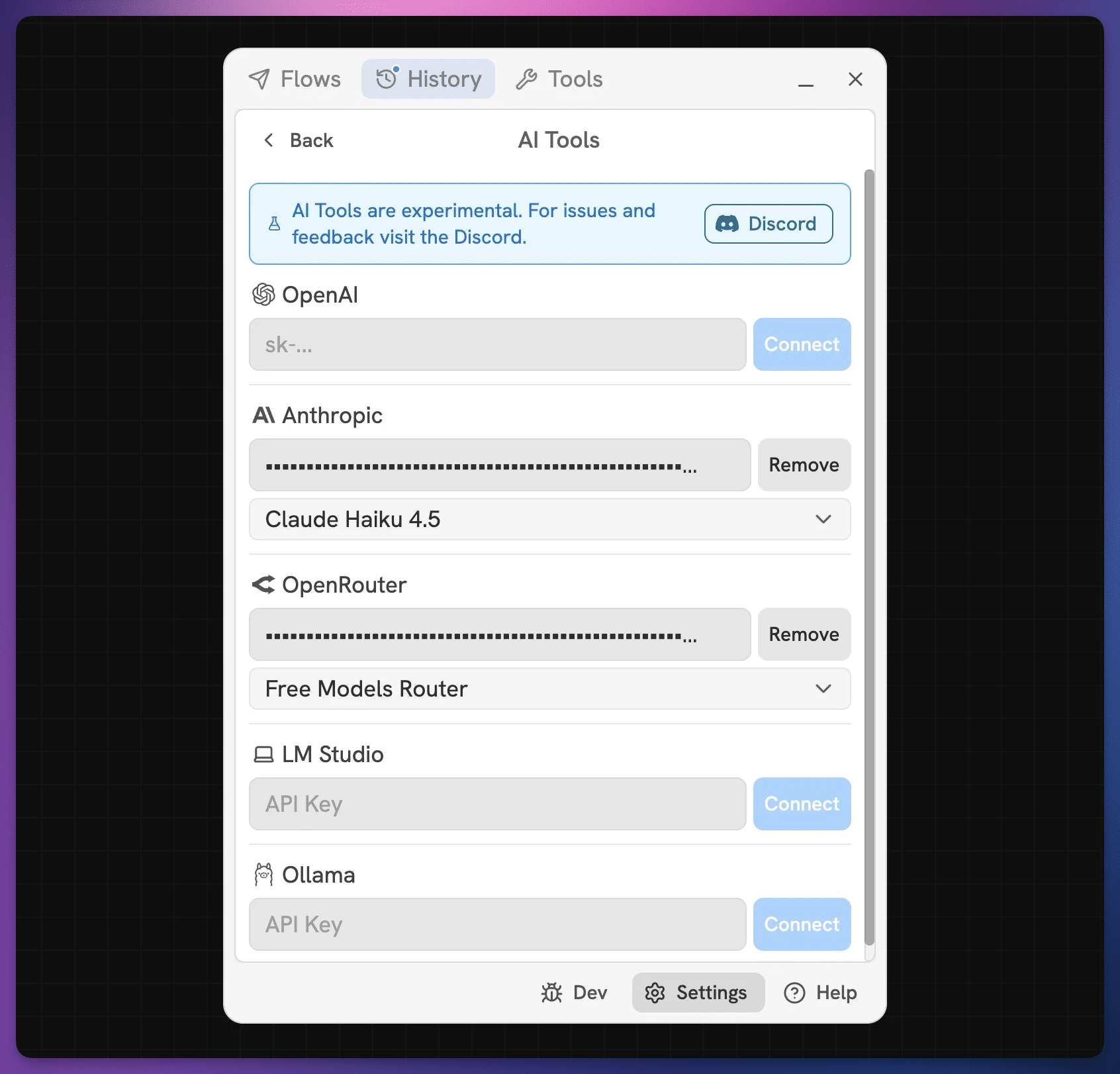
We currently support the following providers:
- OpenAI
- Anthropic
- OpenRouter (allows you to access nearly any AI model, including GPT, Claude, and Gemini models)
- LM Studio (local)
- Ollama (local)
If you’re not sure where to start, OpenRouter is a good choice as it provides access to many free models.
Copy link to headingUsing Local Models
If you have powerful local hardware, you can run certain LLMs locally using either LM Studio or Ollama. These apps will let you download free, public models and run them directly on your local machine.
Both LM Studio and Ollama run a local server that is accessible via a local IP address:
- LM Studio: Uses
http://127.0.0.1:1234by default. - Ollama: Uses
http://127.0.0.1:11434by default.
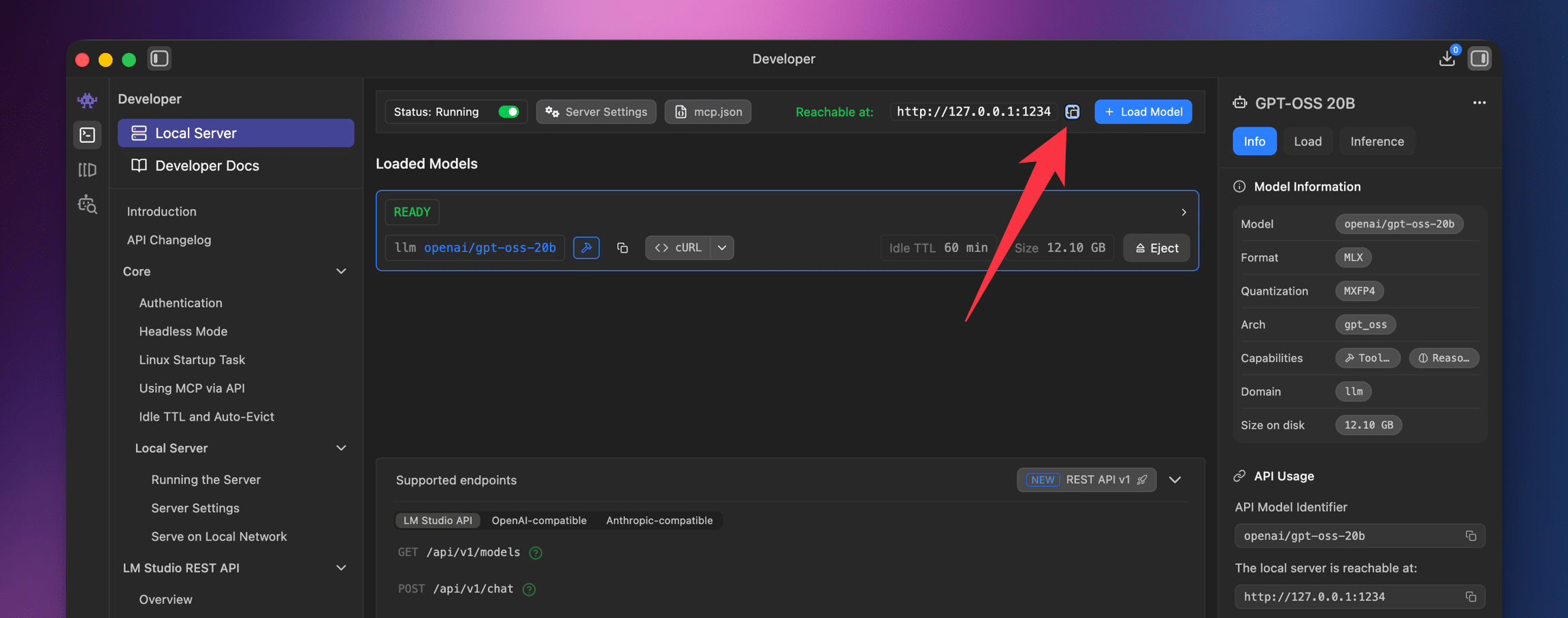
In Flylighter AI settings, you can enter this local HTTP address in place of an API key.
Copy link to headingContent Editor AI Features
Currently, the best use case for Flylighter’s AI features is generating summaries, lists of key points, and custom prompt outputs using the content on a web page as context. The Custom prompt feature also lets you easily ask questions about an article or piece of content.
In a Flow’s Content tab, you can access all AI features from the AI plugin within the Data Picker. Like any of the other plugins – Web, CSS, etc – the AI plugin is a modular tool that can create blocks in the Content Editor.
Here’s an example from my article on the Feynman Technique on how you can create a quick summary.
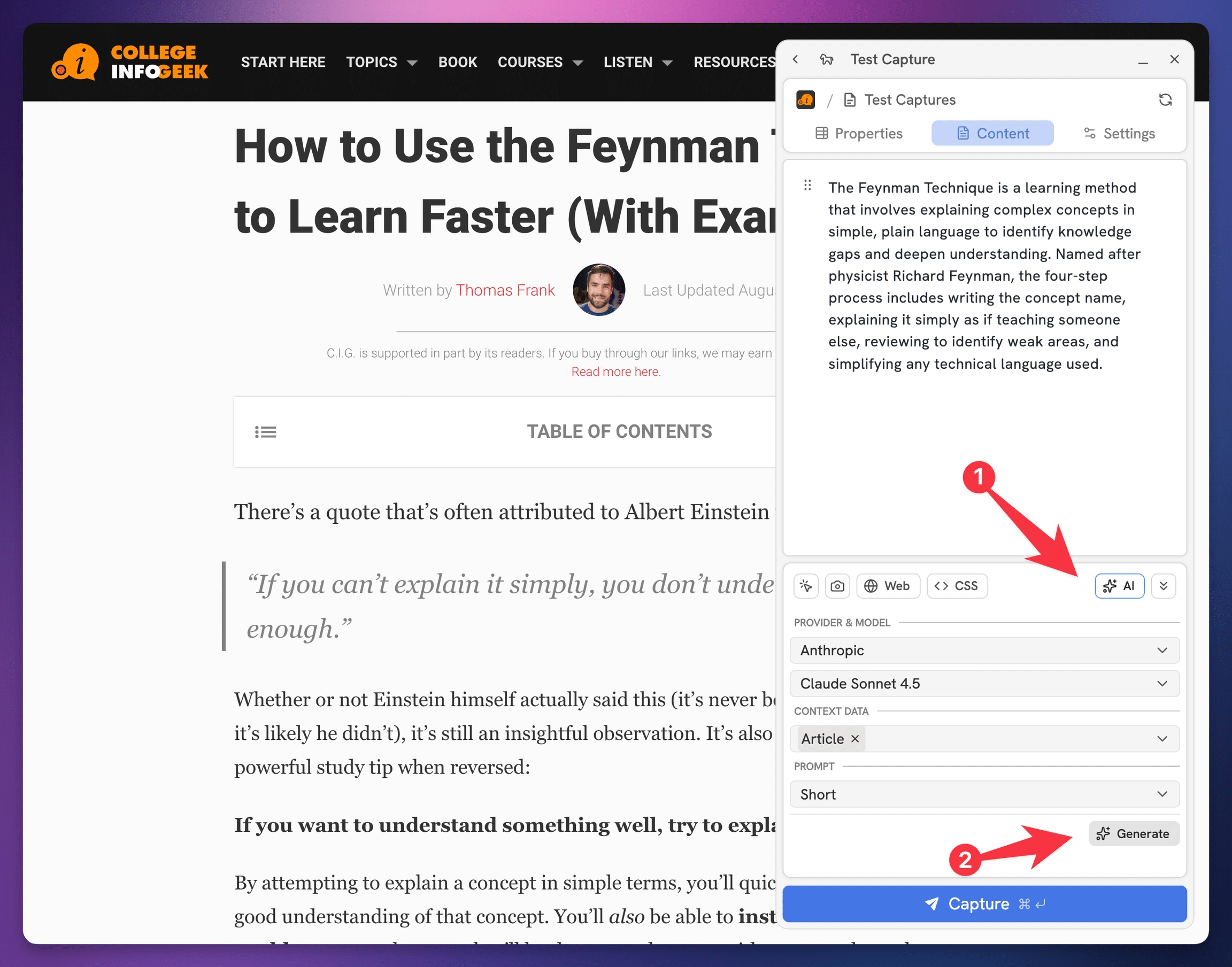
In the AI tab, you’ll see a few different options:
- Provider: Shows all providers for which you’ve set an API key (or local server address).
- Model: Shows all available models for your chosen provider.
- Context Data: Lets you choose a data item from the page to pass as context. Typically,
Articlewill be the most useful. - Prompt: Choose from a few default prompts (Short, Detailed, Key Points), or write a custom prompt.
Once you’re happy with your choices, hit Generate to send your prompt. You’ll see the model’s response populate the Content Editor with new text blocks.
Copy link to headingUsing AI to Speed Up Research
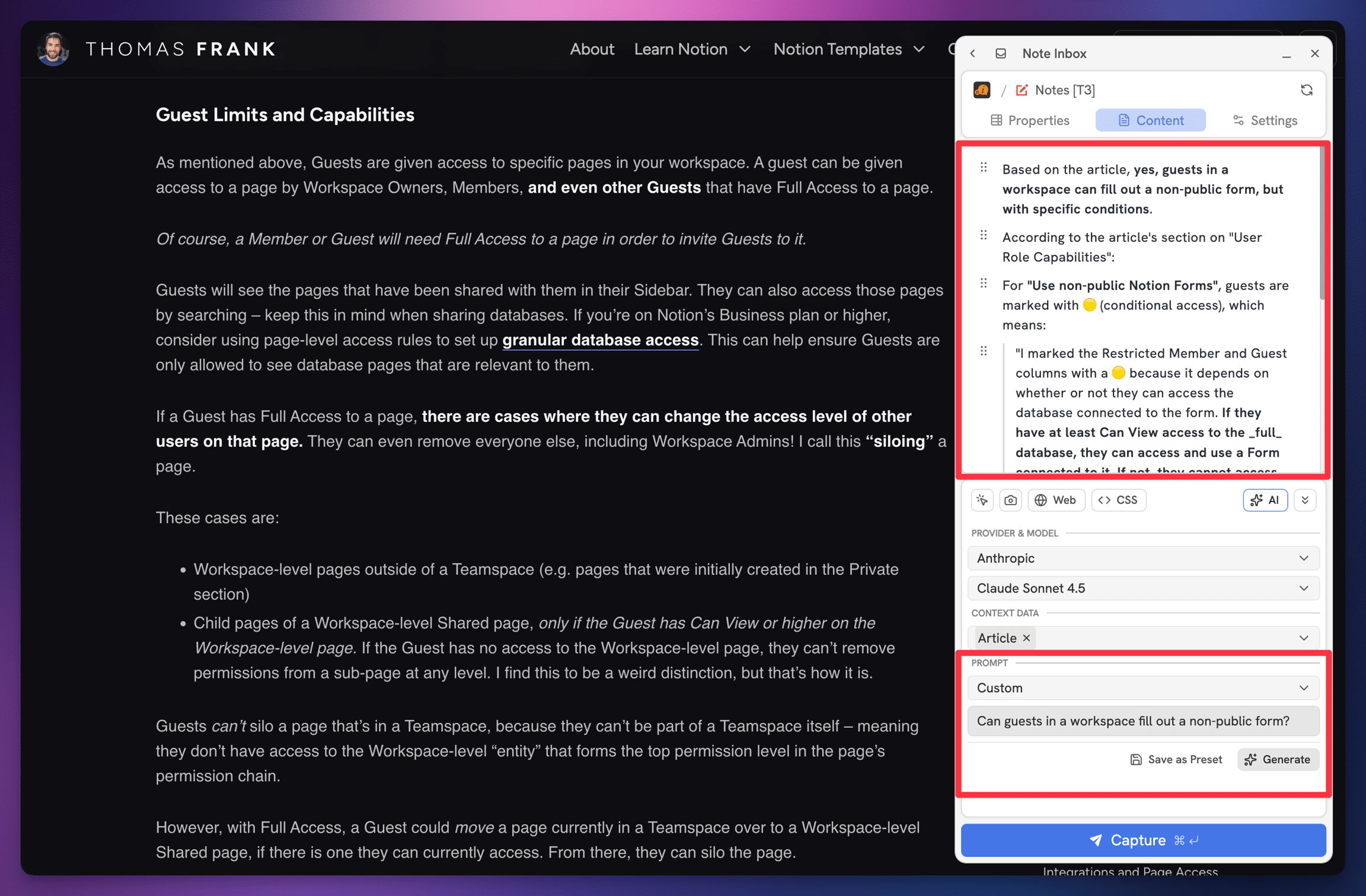
If you’re reading a particularly long article (like my article on Notion permissions), Flylighter’s AI features can come in clutch for quickly answering questions – and even creating highlights for you!
Here, I’ve asked the question, “Can guests in a workspace fill out a non-public form?”
The article answers this question… but the article is also about 15,000 words. Here, the model quickly finds the answer and cites the specific passage that contains it.
Notion Properties and AI Features
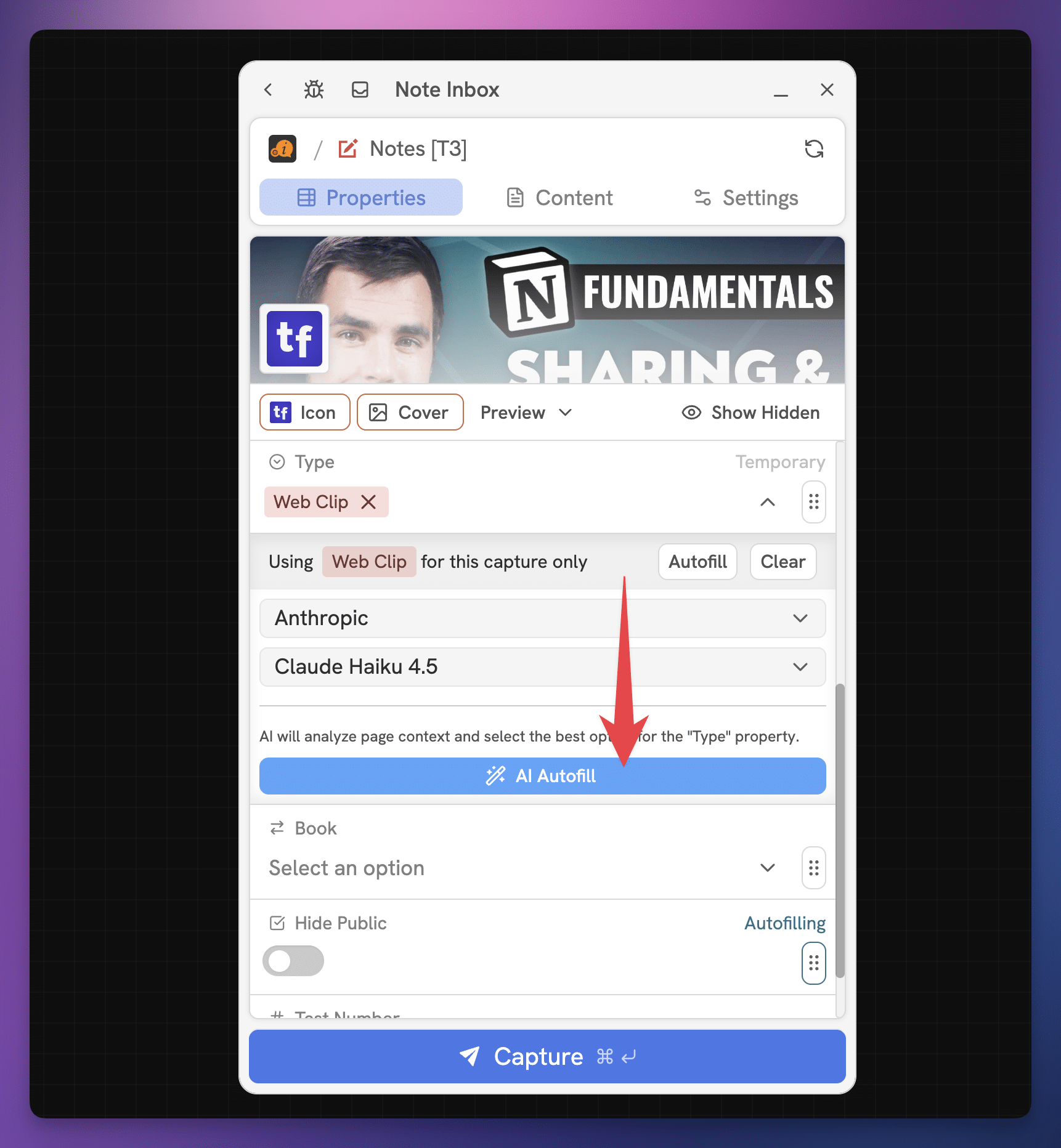
You can also use Flylighter’s AI features to select property values within a Flow’s Properties tab.
If you open up the Data Picker for a property, you’ll find a ✨ button:
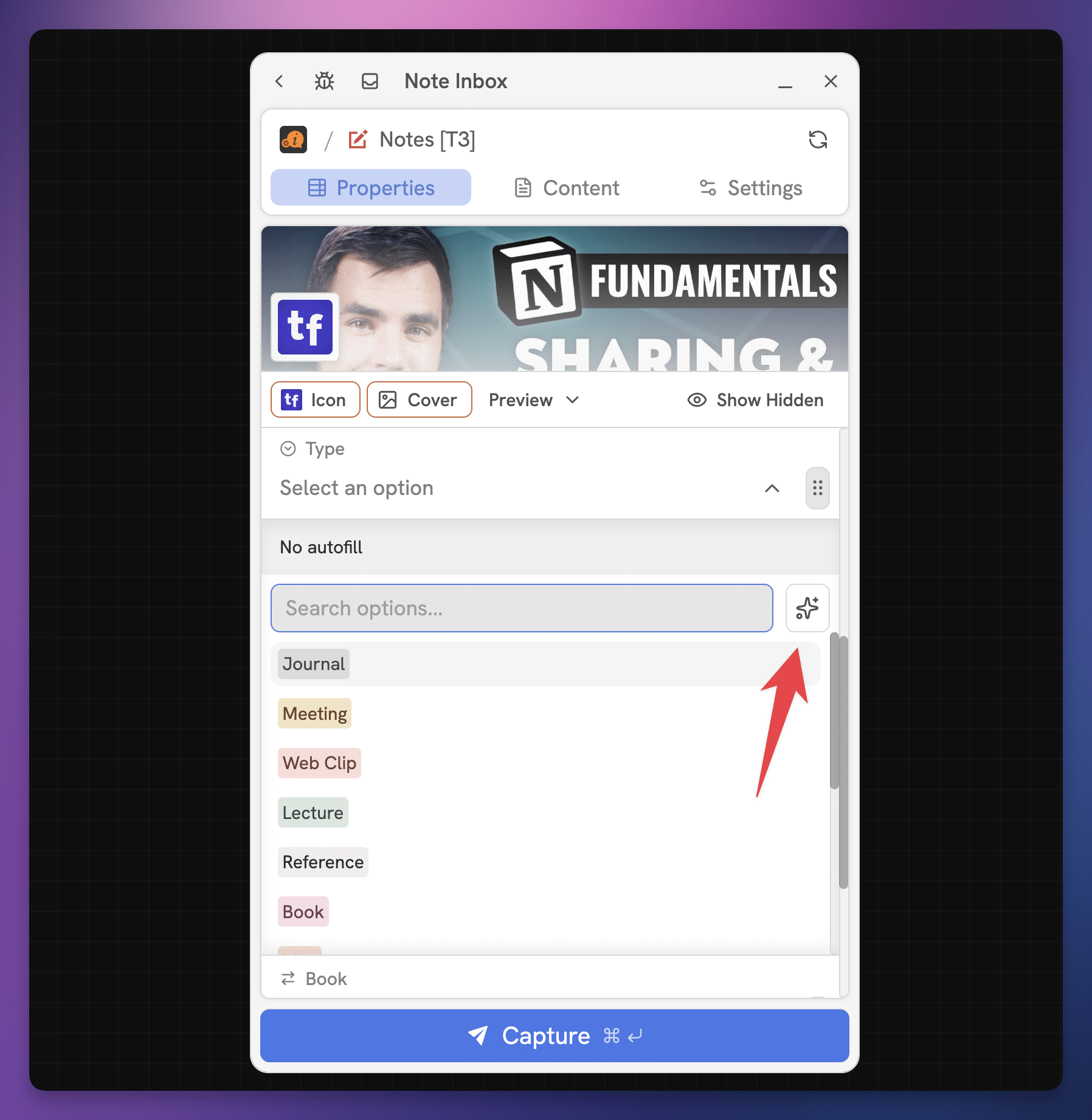
Once you click the AI Autofill button, your chosen model will use the page’s parsed article as context and attempt to choose the best property value.
Note: This feature has some inherent limitations with certain property types. Relation-type properties are of particular note, because Flylighter doesn’t attempt to fetch/cache every option for performance reasons (a Relation might be connected to a data source with tens of thousands of pages). This means the model can only choose from the pages that currently exist in Flylighter’s local cache.